
React Native for OpenHarmony 实战:猜数字实现
本文介绍了使用React Native实现猜数字游戏的关键代码逻辑。游戏包含随机目标数字生成、输入验证、历史记录跟踪以及多种动画效果(按钮点击、输入区域摇晃、胜利界面缩放等)。通过状态管理控制游戏流程,难度可调(1-100范围),并提供即时反馈。历史记录采用动画队列实现渐入效果,最新记录始终置顶。游戏通过emoji图标和动画增强用户体验,使交互更加直观生动。
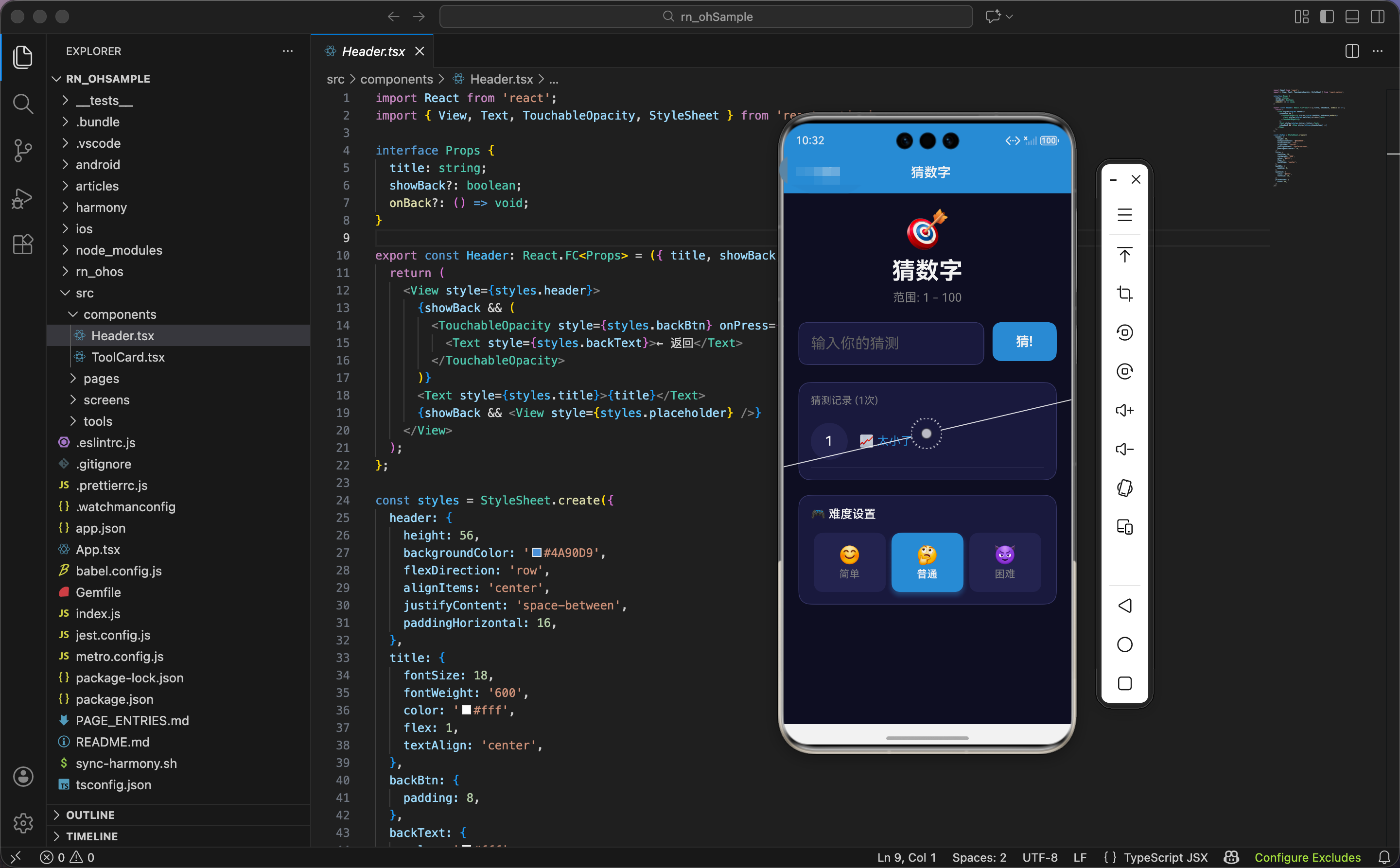
今天我们用 React Native 实现一个猜数字游戏,支持三种难度、猜测记录、动画反馈。
状态设计
import React, { useState, useEffect, useRef } from 'react';
import { View, Text, TextInput, TouchableOpacity, StyleSheet, ScrollView, Animated } from 'react-native';

export const GuessNumber: React.FC = () => {
  const [target, setTarget] = useState(0);
  const [guess, setGuess] = useState('');
  const [history, setHistory] = useState<{ num: number; hint: string }[]>([]);
  const [gameOver, setGameOver] = useState(false);
  const [range, setRange] = useState({ min: 1, max: 100 });

  const buttonAnim = useRef(new Animated.Value(1)).current;
  const resultAnim = useRef(new Animated.Value(0)).current;
  const shakeAnim = useRef(new Animated.Value(0)).current;
  const winAnim = useRef(new Animated.Value(0)).current;
  const historyAnims = useRef<Animated.Value[]>([]).current;
状态设计包含目标数字、当前猜测、历史记录、游戏状态、难度范围。
目标数字:target 是要猜的数字,游戏开始时随机生成。
当前猜测:guess 是输入框的值,字符串类型。提交时转换成数字。
历史记录:history 是数组,每个元素包含猜测的数字和提示(太大、太小、正确)。
游戏状态:gameOver 标记游戏是否结束。猜对时设为 true,显示胜利界面。
难度范围:range 对象包含最小值和最大值。默认是 1-100(普通难度)。
五个动画值:
buttonAnim:猜测按钮的缩放动画resultAnim:结果显示的动画(代码中定义但未使用)shakeAnim:输入区域的摇晃动画,猜错时触发winAnim:胜利界面的缩放和淡入动画historyAnims:历史记录的动画数组,每条记录独立动画
为什么历史记录用对象数组?因为每条记录包含两个信息:猜测的数字和提示。用对象 { num, hint } 存储,结构清晰。如果用两个数组分别存储数字和提示,需要保证两个数组的索引对应,容易出错。
游戏初始化
  const startGame = () => {
    setTarget(Math.floor(Math.random() * (range.max - range.min + 1)) + range.min);
    setHistory([]);
    setGameOver(false);
    setGuess('');
    historyAnims.length = 0;
    winAnim.setValue(0);
  };

  useEffect(() => { startGame(); }, []);
游戏初始化函数生成随机目标数字,重置所有状态。
随机数生成:Math.random() * (range.max - range.min + 1) + range.min
range.max - range.min + 1:范围的长度。比如 1-100,长度是 100Math.random() * 100:生成 0 到 100 的随机浮点数(不包括 100)Math.floor(...):向下取整,得到 0 到 99 的整数+ range.min:加上最小值,得到 1 到 100 的整数
为什么要 +1?因为 Math.random() 生成的是 [0, 1) 区间的数,不包括 1。如果不 +1,Math.random() * (100 - 1) 最大是 98.999…,向下取整是 98,加上最小值 1 得到 99,永远生成不了 100。+1 后,Math.random() * 100 最大是 99.999…,向下取整是 99,加上 1 得到 100。
重置状态:
- 清空历史记录
- 游戏状态设为未结束
- 清空输入框
- 清空历史记录动画数组
- 重置胜利动画值为 0
组件加载时启动游戏:useEffect(() => { startGame(); }, []) 在组件首次渲染后调用 startGame,生成第一个目标数字。空依赖数组 [] 确保只执行一次。
猜测逻辑
  const handleGuess = () => {
    const num = parseInt(guess);
    if (isNaN(num)) return;

    // 按钮动画
    Animated.sequence([
      Animated.timing(buttonAnim, { toValue: 0.9, duration: 100, useNativeDriver: true }),
      Animated.spring(buttonAnim, { toValue: 1, friction: 3, useNativeDriver: true }),
    ]).start();

    let hint = '';
    if (num === target) {
      hint = '🎉 正确!';
      setGameOver(true);
      Animated.spring(winAnim, { toValue: 1, friction: 4, useNativeDriver: true }).start();
    } else {
      if (num < target) hint = '📈 太小了';
      else hint = '📉 太大了';

      // 摇晃动画
      Animated.sequence([
        Animated.timing(shakeAnim, { toValue: 1, duration: 50, useNativeDriver: true }),
        Animated.timing(shakeAnim, { toValue: -1, duration: 50, useNativeDriver: true }),
        Animated.timing(shakeAnim, { toValue: 1, duration: 50, useNativeDriver: true }),
        Animated.timing(shakeAnim, { toValue: 0, duration: 50, useNativeDriver: true }),
      ]).start();
    }
猜测函数包含输入验证、按钮动画、判断逻辑、反馈动画。
输入验证:parseInt(guess) 把字符串转成整数。如果转换失败(比如输入是空字符串或非数字),isNaN(num) 返回 true,直接返回,不处理。
按钮动画:序列动画,按钮缩小到 90%(100ms),再弹回到 100%。friction: 3 让弹簧有明显的回弹效果,给用户"点击"的触感反馈。
判断逻辑:
- 如果猜对(
num === target),提示"🎉 正确!",游戏结束,启动胜利动画 - 如果猜小(
num < target),提示"📈 太小了" - 如果猜大(
num > target),提示"📉 太大了"
为什么用 emoji 图标?因为图标能快速传达信息。📈 向上箭头表示"需要更大的数",📉 向下箭头表示"需要更小的数",🎉 庆祝表示"成功"。用户看到图标就知道结果,不需要读文字。
摇晃动画:猜错时触发,序列动画让输入区域左右摇晃。从 0 到 1(向右)、到 -1(向左)、到 1(向右)、回到 0,总共 200ms。摇晃 3 次,给用户"错误"的视觉反馈。
胜利动画:弹簧动画让胜利界面从 0 缩放到 1,同时淡入(透明度从 0 到 1)。friction: 4 让弹簧有适度的回弹效果,不会太夸张。
历史记录动画
    // 添加历史记录动画
    const newAnim = new Animated.Value(0);
    historyAnims.unshift(newAnim);
    Animated.spring(newAnim, { toValue: 1, friction: 5, useNativeDriver: true }).start();

    setHistory([{ num, hint }, ...history]);
    setGuess('');
  };
每次猜测后,添加新记录到历史记录数组开头,同时创建对应的动画。
创建动画值:new Animated.Value(0) 创建初始值为 0 的动画值。
插入动画数组:historyAnims.unshift(newAnim) 把新动画值插入数组开头。unshift 是数组的方法,在开头插入元素。
启动动画:弹簧动画从 0 到 1,friction: 5 让弹簧有明显的回弹效果。新记录从无到有、从小到大地出现。
更新历史记录:[{ num, hint }, ...history] 把新记录插入数组开头,保留所有旧记录。
清空输入框:setGuess('') 清空输入框,方便用户输入下一次猜测。
为什么历史记录插入开头而不是末尾?因为最新的记录最重要,应该显示在最上面。如果插入末尾,用户需要滚动到底部才能看到最新记录。插入开头,最新记录总是在视野内。
摇晃插值
const shake = shakeAnim.interpolate({ inputRange: [-1, 0, 1], outputRange: ['-5deg', '0deg', '5deg'] });
插值把动画值 -1 到 1 映射到旋转角度 -5 度到 5 度。输入区域左右旋转,营造"摇晃"效果。
为什么用旋转而不是平移?因为旋转更夸张,视觉效果更明显。平移只是左右移动,旋转是整个区域倾斜,更能吸引用户注意。
界面渲染:头部和输入区域
  return (
    <ScrollView style={styles.container}>
      <View style={styles.header}>
        <Text style={styles.headerIcon}>🎯</Text>
        <Text style={styles.title}>猜数字</Text>
        <Text style={styles.subtitle}>范围: {range.min} - {range.max}</Text>
      </View>

      {!gameOver ? (
        <Animated.View style={[styles.inputSection, { transform: [{ rotate: shake }] }]}>
          <TextInput
            style={styles.input}
            value={guess}
            onChangeText={setGuess}
            keyboardType="numeric"
            placeholder="输入你的猜测"
            placeholderTextColor="#666"
          />
          <Animated.View style={{ transform: [{ scale: buttonAnim }] }}>
            <TouchableOpacity style={styles.btn} onPress={handleGuess} activeOpacity={0.8}>
              <Text style={styles.btnText}>猜!</Text>
            </TouchableOpacity>
          </Animated.View>
        </Animated.View>
      ) : (
头部显示游戏标题和当前难度范围。
输入区域:
- 只在游戏未结束时显示(
!gameOver) - 应用摇晃动画(
transform: [{ rotate: shake }]) - 包含输入框和猜测按钮
输入框:
keyboardType="numeric":弹出数字键盘,方便输入placeholder:提示用户输入内容value和onChangeText:受控组件,输入值存储在guess状态中
猜测按钮:
- 用
Animated.View包裹,应用缩放动画 - 点击时触发
handleGuess函数
胜利界面
        <Animated.View style={[styles.winSection, {
          transform: [{ scale: winAnim }],
          opacity: winAnim,
        }]}>
          <Text style={styles.winEmoji}>🎊</Text>
          <Text style={styles.winText}>恭喜你猜对了!</Text>
          <Text style={styles.winInfo}>答案是 {target},你用了 {history.length} 次</Text>
          <TouchableOpacity style={styles.restartBtn} onPress={startGame} activeOpacity={0.8}>
            <Text style={styles.btnText}>再来一局</Text>
          </TouchableOpacity>
        </Animated.View>
      )}
胜利界面只在游戏结束时显示(gameOver 为 true)。
动画效果:
transform: [{ scale: winAnim }]:缩放动画,从 0 到 1opacity: winAnim:透明度动画,从 0 到 1- 两个动画同时进行,胜利界面从无到有、从小到大地出现
胜利信息:
- 🎊 庆祝图标
- “恭喜你猜对了!”
- “答案是 X,你用了 Y 次”:显示答案和猜测次数
再来一局按钮:点击时调用 startGame,重新开始游戏。
为什么显示猜测次数?因为猜测次数是衡量玩家水平的指标。次数越少,说明玩家越聪明。显示次数给玩家成就感,也鼓励玩家挑战更少的次数。
历史记录显示
      <View style={styles.history}>
        <Text style={styles.historyTitle}>猜测记录 ({history.length}次)</Text>
        {history.map((item, i) => (
          <Animated.View
            key={i}
            style={[styles.historyItem, {
              transform: [
                { scale: historyAnims[i] || new Animated.Value(1) },
                { translateX: (historyAnims[i] || new Animated.Value(1)).interpolate({
                  inputRange: [0, 1], outputRange: [-50, 0]
                }) },
              ],
              opacity: historyAnims[i] || 1,
            }]}
          >
            <View style={styles.historyNumBox}>
              <Text style={styles.historyNum}>{item.num}</Text>
            </View>
            <Text style={styles.historyHint}>{item.hint}</Text>
          </Animated.View>
        ))}
      </View>
历史记录显示所有猜测和提示。
标题:显示"猜测记录 (X次)",X 是历史记录的数量。
遍历历史记录:history.map 遍历数组,每条记录渲染一个动画视图。
动画效果:
scale:缩放动画,从 0 到 1translateX:水平位移动画,从 -50 到 0(从左边滑入)opacity:透明度动画,从 0 到 1
为什么用 || new Animated.Value(1)?因为历史记录可能在动画创建之前就存在(比如切换难度时,历史记录被清空,但渲染时可能还有旧记录)。如果动画值不存在,用默认值 1,避免报错。
记录内容:
- 左边是圆形框,显示猜测的数字
- 右边是提示文字(太大、太小、正确)
难度设置
      <View style={styles.settings}>
        <Text style={styles.settingsTitle}>🎮 难度设置</Text>
        <View style={styles.rangeRow}>
          {[
            { min: 1, max: 50, label: '简单', icon: '😊' },
            { min: 1, max: 100, label: '普通', icon: '🤔' },
            { min: 1, max: 1000, label: '困难', icon: '😈' },
          ].map(r => (
            <TouchableOpacity
              key={r.label}
              style={[styles.rangeBtn, range.max === r.max && styles.rangeBtnActive]}
              onPress={() => { setRange(r); startGame(); }}
              activeOpacity={0.7}
            >
              <Text style={styles.rangeIcon}>{r.icon}</Text>
              <Text style={[styles.rangeText, range.max === r.max && styles.rangeTextActive]}>{r.label}</Text>
            </TouchableOpacity>
          ))}
        </View>
      </View>
    </ScrollView>
  );
};
难度设置提供三种难度选项:简单(1-50)、普通(1-100)、困难(1-1000)。
难度数组:每个难度包含最小值、最大值、标签、图标。
遍历难度:map 遍历数组,每个难度渲染一个按钮。
激活状态:range.max === r.max 判断当前难度是否激活。激活的按钮应用 rangeBtnActive 样式(蓝色背景、阴影)。
点击处理:
setRange(r):更新难度范围startGame():重新开始游戏,生成新的目标数字
为什么点击难度按钮要重新开始游戏?因为难度变化后,目标数字的范围变了,旧的目标数字可能超出新范围。比如当前目标是 80,切换到简单难度(1-50),80 超出范围,游戏无法继续。重新开始游戏,生成符合新范围的目标数字。
为什么用不同的 emoji 图标?因为图标能传达难度的"感觉"。😊 笑脸表示"轻松",🤔 思考表示"需要动脑",😈 恶魔表示"很难"。用户看到图标就能感受到难度。
鸿蒙 ArkTS 对比:游戏逻辑
@State target: number = 0
@State guess: string = ''
@State history: { num: number, hint: string }[] = []
@State gameOver: boolean = false
@State range: { min: number, max: number } = { min: 1, max: 100 }

startGame() {
  this.target = Math.floor(Math.random() * (this.range.max - this.range.min + 1)) + this.range.min
  this.history = []
  this.gameOver = false
  this.guess = ''
}

handleGuess() {
  const num = parseInt(this.guess)
  if (isNaN(num)) return

  let hint = ''
  if (num === this.target) {
    hint = '🎉 正确!'
    this.gameOver = true
  } else {
    if (num < this.target) hint = '📈 太小了'
    else hint = '📉 太大了'
  }

  this.history = [{ num, hint }, ...this.history]
  this.guess = ''
}
ArkTS 中的游戏逻辑完全一样,核心是随机数生成、数字比较、状态更新。随机数公式、判断逻辑、数组操作都是标准 JavaScript,跨平台通用。
样式定义:容器和头部
const styles = StyleSheet.create({
  container: { flex: 1, backgroundColor: '#0f0f23', padding: 20 },
  header: { alignItems: 'center', marginBottom: 24 },
  headerIcon: { fontSize: 50, marginBottom: 8 },
  title: { fontSize: 32, color: '#fff', fontWeight: '700' },
  subtitle: { color: '#888', marginTop: 8, fontSize: 16 },
  inputSection: { flexDirection: 'row', marginBottom: 24 },
  input: {
    flex: 1,
    backgroundColor: '#1a1a3e',
    color: '#fff',
    padding: 16,
    borderRadius: 12,
    fontSize: 20,
    marginRight: 12,
    borderWidth: 1,
    borderColor: '#3a3a6a',
  },
容器用深蓝黑色背景(#0f0f23),营造深色主题。
头部:居中对齐,包含图标、标题、副标题。
输入区域:水平排列(flexDirection: 'row'),输入框和按钮并排。
输入框:
flex: 1:占据剩余空间- 深蓝色背景(#1a1a3e),白色文字
- 字号 20,比较大,方便输入
- 右边距 12,和按钮保持间隙
样式定义:按钮和胜利界面
  btn: {
    backgroundColor: '#4A90D9',
    paddingHorizontal: 32,
    paddingVertical: 16,
    borderRadius: 12,
    justifyContent: 'center',
  },
  btnText: { color: '#fff', fontSize: 18, fontWeight: '700' },
  winSection: {
    alignItems: 'center',
    backgroundColor: '#1a1a3e',
    borderRadius: 20,
    padding: 30,
    marginBottom: 24,
    borderWidth: 1,
    borderColor: '#ffd700',
  },
  winEmoji: { fontSize: 60, marginBottom: 12 },
  winText: { fontSize: 28, color: '#ffd700', fontWeight: '700', marginBottom: 8 },
  winInfo: { color: '#888', marginBottom: 20, fontSize: 16 },
  restartBtn: {
    backgroundColor: '#4A90D9',
    paddingHorizontal: 32,
    paddingVertical: 14,
    borderRadius: 12,
  },
按钮用蓝色背景(#4A90D9),白色粗体文字,圆角 12。
胜利界面:
- 深蓝色背景,圆角 20
- 金色边框(#ffd700),营造"胜利"的感觉
- 居中对齐
胜利文字:金色(#ffd700),字号 28,粗体,醒目。
胜利信息:灰色(#888),字号 16,次要。
样式定义:历史记录和难度设置
  history: {
    backgroundColor: '#1a1a3e',
    padding: 16,
    borderRadius: 16,
    marginBottom: 20,
    borderWidth: 1,
    borderColor: '#3a3a6a',
  },
  historyTitle: { color: '#888', marginBottom: 12, fontSize: 14 },
  historyItem: {
    flexDirection: 'row',
    alignItems: 'center',
    paddingVertical: 10,
    borderBottomWidth: 1,
    borderBottomColor: '#2a2a4e',
  },
  historyNumBox: {
    width: 50,
    height: 50,
    borderRadius: 25,
    backgroundColor: '#252550',
    justifyContent: 'center',
    alignItems: 'center',
    marginRight: 16,
  },
  historyNum: { color: '#fff', fontSize: 18, fontWeight: '600' },
  historyHint: { color: '#4A90D9', fontSize: 16 },
  settings: {
    backgroundColor: '#1a1a3e',
    padding: 16,
    borderRadius: 16,
    borderWidth: 1,
    borderColor: '#3a3a6a',
  },
  settingsTitle: { color: '#fff', marginBottom: 16, fontSize: 16, fontWeight: '600' },
  rangeRow: { flexDirection: 'row' },
  rangeBtn: {
    flex: 1,
    padding: 16,
    backgroundColor: '#252550',
    borderRadius: 12,
    marginHorizontal: 4,
    alignItems: 'center',
  },
  rangeBtnActive: {
    backgroundColor: '#4A90D9',
    shadowColor: '#4A90D9',
    shadowOffset: { width: 0, height: 4 },
    shadowOpacity: 0.4,
    shadowRadius: 8,
  },
  rangeIcon: { fontSize: 24, marginBottom: 4 },
  rangeText: { color: '#888', fontSize: 14 },
  rangeTextActive: { color: '#fff', fontWeight: '600' },
});
历史记录和难度设置用相同的背景色、圆角、边框,保持视觉统一。
历史记录项:
- 水平排列,左边是圆形数字框,右边是提示文字
- 底部边框分隔每条记录
数字框:圆形(50×50,圆角 25),深蓝色背景,白色文字。
提示文字:蓝色(#4A90D9),字号 16。
难度按钮:
flex: 1:平分剩余空间,3 个按钮等宽- 深蓝色背景(#252550),圆角 12
- 激活状态用蓝色背景和阴影
为什么激活按钮用阴影?因为阴影能营造"按下"的效果,让用户知道这是当前选中的难度。没有阴影的按钮看起来是"平的",有阴影的按钮看起来是"凸起的"。
小结
这个猜数字游戏展示了游戏逻辑和动画反馈的结合。随机数生成、数字比较、历史记录是核心功能。摇晃动画、胜利动画、历史记录滑入动画营造丰富的交互体验。三种难度让游戏有不同的挑战性。
欢迎加入开源鸿蒙跨平台社区:https://openharmonycrossplatform.csdn.net
更多推荐
 16
16 0
0- 0


 已为社区贡献6条内容

所有评论(0)